 xT Development
Installation & Usage
Set the xT Admin web portal up end to end - Discord application, tunnel, convars, first login.
The portal is off until you finish this page, and it fails shut - a half-finished setup serves a bare 404 rather than a login page that cannot complete.
Budget about 20 minutes. You need three things before you start:
- a domain you own
- a free Cloudflare account
- a Discord server you can administrate
Only the last of those is needed to try it on your own machine first - see Testing without a domain.
There is no database work and no key to generate. The tables and the session signing key are created on first start.
Step 1 - Create a Discord application
This gets you two of the five values.
New Application
Go to discord.com/developers/applications →
New Application. Name it whatever your staff will see on the login screen, e.g.
MyServer Admin.
Copy the Client ID
Left sidebar → OAuth2 → copy Client ID. This is xt_admin_discord_id.
Reset and copy the Secret
Reset Secret → copy the value. This is xt_admin_discord_secret.
Discord shows it once. Paste it straight into server.cfg in Step 4.
Leave Redirects alone for now
Step 5 prints the exact URL to paste in.
Do not create a bot. The portal asks Discord for the identify and guilds.members.read
scopes, which read the member's roles without a bot token. Nothing to invite, no token to keep
safe.
Step 2 - Get your Discord server ID
- Discord → User Settings → Advanced → turn on Developer Mode.
- Right-click your server's icon in the sidebar → Copy Server ID.
That 18-digit number is xt_admin_discord_guild.
Just trying it out? Skip Step 3 and the tunnel entirely - jump to Testing without a domain. You still need Steps 1 and 2.
Step 3 - Put the portal on an https hostname
Discord will only redirect to https://, and FXServer has no TLS of its own - it serves this
resource in plaintext on the game port, which is already open to the internet on every live
server. A Cloudflare Tunnel gives you the hostname and the certificate, for free, without
opening anything further: cloudflared on your server dials out to Cloudflare, and Cloudflare
hands the portal's requests back down that connection.
There are two ways to set one up. Use the dashboard unless you already run tunnels from a
config.yml - it is the same tunnel, with the routing rule and the service install done for
you, and nothing to keep in a file on the box.
Add your domain to Cloudflare
cloudflare.com → Add a site, then point your registrar's nameservers at the two Cloudflare gives you. Both methods below need this - a tunnel can only publish a hostname on a domain Cloudflare is serving DNS for.
Create the tunnel
dash.cloudflare.com → Networking → Tunnels →
Create Tunnel. Name it xt-admin and press Create Tunnel.
If Cloudflare sends you through a Zero Trust sign-up on the way in, pick the Free plan - it may ask for a card, and does not charge it.
Install the connector on the FXServer machine
Under Setup Environment, pick the server's operating system, then run the commands shown
under Install and Run - in an Administrator PowerShell on Windows, as root on Linux.
They install cloudflared and register it as a service carrying a token for this tunnel:
# the last line the dashboard gives you - the token is the long string
cloudflared.exe service install <TOKEN>        # Windows
sudo cloudflared service install <TOKEN>       # Linux
A service is what makes it survive a reboot, and this already is one. When the page shows the connector as connected, press Continue.
Add the route
Routes → Add route → Published application, then:
| Field | Value |
|---|---|
| Subdomain | admin |
| Domain | yourdomain.com |
| Path | ^/xt-adminportal(/.*)?$ |
| Service URL | http://localhost:30120 |
Save it. Cloudflare creates the DNS record for admin.yourdomain.com at the same time - there
is nothing to add by hand.
Older accounts still show this as Public Hostname → Add a public hostname, with
Type HTTP and URL localhost:30120. Same fields, same values.
Check the path rule took
Open https://admin.yourdomain.com/players.json. You want a bare 404. If you see your player
list instead, the Path field is empty or mistyped - fix it before going any further.
admin.yourdomain.com is your xt_admin_portal_host.
Keep that path rule. FiveM serves every resource's HTTP handler on port 30120, alongside
/players.json and /info.json. Those are already reachable on your game port - the rule
stops you also mirroring them onto your domain, where they get crawled and indexed rather
than merely found by someone scanning you. In the dashboard it is the Path field; in
config.yml it is the path: line. Same regular expression either way.
Because cloudflared forwards the path exactly as it received it, the portal lives under
/xt-adminportal - so you also set xt_admin_portal_base "/xt-adminportal". Only if you put
nginx or Caddy in front and rewrite that prefix away do you leave portal_base unset.
Run cloudflared on the same machine as FXServer. The link from Cloudflare down to
cloudflared is encrypted; the last hop from cloudflared to localhost:30120 is not, which
is fine on loopback. Pointing the service URL at a remote http://<ip>:30120 from a tunnel on
some other box sends every session cookie across the internet in plaintext. If your host gives
you no way to run a service on the box, there is no safe tunnel - do not work around it with a
remote origin.
Step 4 - Fill in server.cfg
Put these above your ensure lines - convars are read when the resource starts.
set xt_admin_portal_host    "admin.yourdomain.com"    # Step 3
set xt_admin_portal_base    "/xt-adminportal"         # Step 3 - Cloudflare Tunnel setups need this
set xt_admin_discord_id     "1234567890123456789"     # Step 1
set xt_admin_discord_secret "xxxxxxxxxxxxxxxxxxxx"    # Step 1
set xt_admin_discord_guild  "9876543210987654321"     # Step 2

ensure xt-admin          # the menu - owns every permission decision the portal makes
ensure xt-adminportal # the portal - must come after itset, not setr. setr replicates the value to every connected client, and your client
secret would go with it.
Secrets never go in configs/portal.lua. That file ships in plaintext and owners paste it
into support channels every day.
Starting xt-adminportal first is survivable - it waits for xt-admin and refuses to serve
anything until it answers. Starting it without xt-admin means a console error and a portal
that 404s every request.
Step 5 - Turn it on and read the console
enabled = true,Restart the server. The console prints two lines:
Web portal ready at https://admin.yourdomain.com/xt-adminportal/
Web portal: set the Discord redirect URI to https://admin.yourdomain.com/xt-adminportal/auth/callback
Copy that second URL into your Discord application → OAuth2 → Redirects → Save. It has to match character for character, trailing slash and all.
If you instead see Web portal is enabled but not configured - still missing: ..., that convar
did not take. Check the spelling, and check that the set lines sit above the ensure
lines.
Step 6 - Give your staff a rank
This is the step people get wrong. ACE permissions do not work for the portal.
add_ace group.admin admin allow grants a rank to a connected player, and there is no
connected player behind a web request - so an ACE-only admin will log in successfully and be
told they have no access. The server prints a warning at start if nobody can get in.
Use one of these instead. All three live in xt-admin, not here - ranks are its business, and the portal only asks.
| How | Where | Notes |
|---|---|---|
permissionsByDiscordRole - recommended | xt-admin/configs/permissions.lua | Map a role once, manage the people in Discord |
| In-game Permissions editor | Admin menu → Permissions | Per-person. Writes the database |
permissionsByLicense | xt-admin/configs/permissions.lua | Per-person. ['license:abcd...'] = 'admin' |
Grant by Discord role
You almost certainly already have @Moderator and @Admin roles, and staff changes then
happen entirely in Discord: hand someone the role and they have the portal on their next
login, take it away and they are out. Nobody has to edit a config or log into the game to
promote a new moderator. Map each role once -
permissionsByDiscordRole = {
    [123456789012345678] = 'mod',     -- @Moderator
    [987654321098765432] = 'admin',   -- @Admin
},
That is a role id, not a user id. Server Settings → Roles → right-click the role → Copy Role ID. For the portal nothing else needs wiring up - the Discord login already hands back every role the member holds.
The other two
Both are keyed on a license, and Discord hands the portal no license at all - so the
Discord account has to be matched back to one out of your own database. That happens
automatically for anyone currently connected, anyone previously banned, and - via the
discordToLicense hook in xt-admin/configs/server.lua - anyone in QBX's users table, which
records license, license2, fivem and discord side by side on first connect.
All three of those need the person to have connected to your server at least once. Someone you have just hired who has never joined matches none of them, so a license-keyed grant silently does nothing for them until they play. A Discord role works on their first portal login, before they have ever set foot on the server.
That hook ships working for QBX and qb-core. On another framework you would have to adjust that one query - one more reason to grant portal staff by Discord role, which needs no license at all. See discordToLicense.
Step 7 - First login
Open the portal
https://admin.yourdomain.com/xt-adminportal/
Sign in with Discord
Authorize the application.
Add the server to your authenticator
On a phone, press Open in authenticator app - the otpauth:// link hands the enrolment
straight to it. On a desktop, copy the secret and paste it in by hand. Any authenticator will do
- Google Authenticator, Authy, 1Password, Bitwarden.
Type the 6-digit code
That's it.
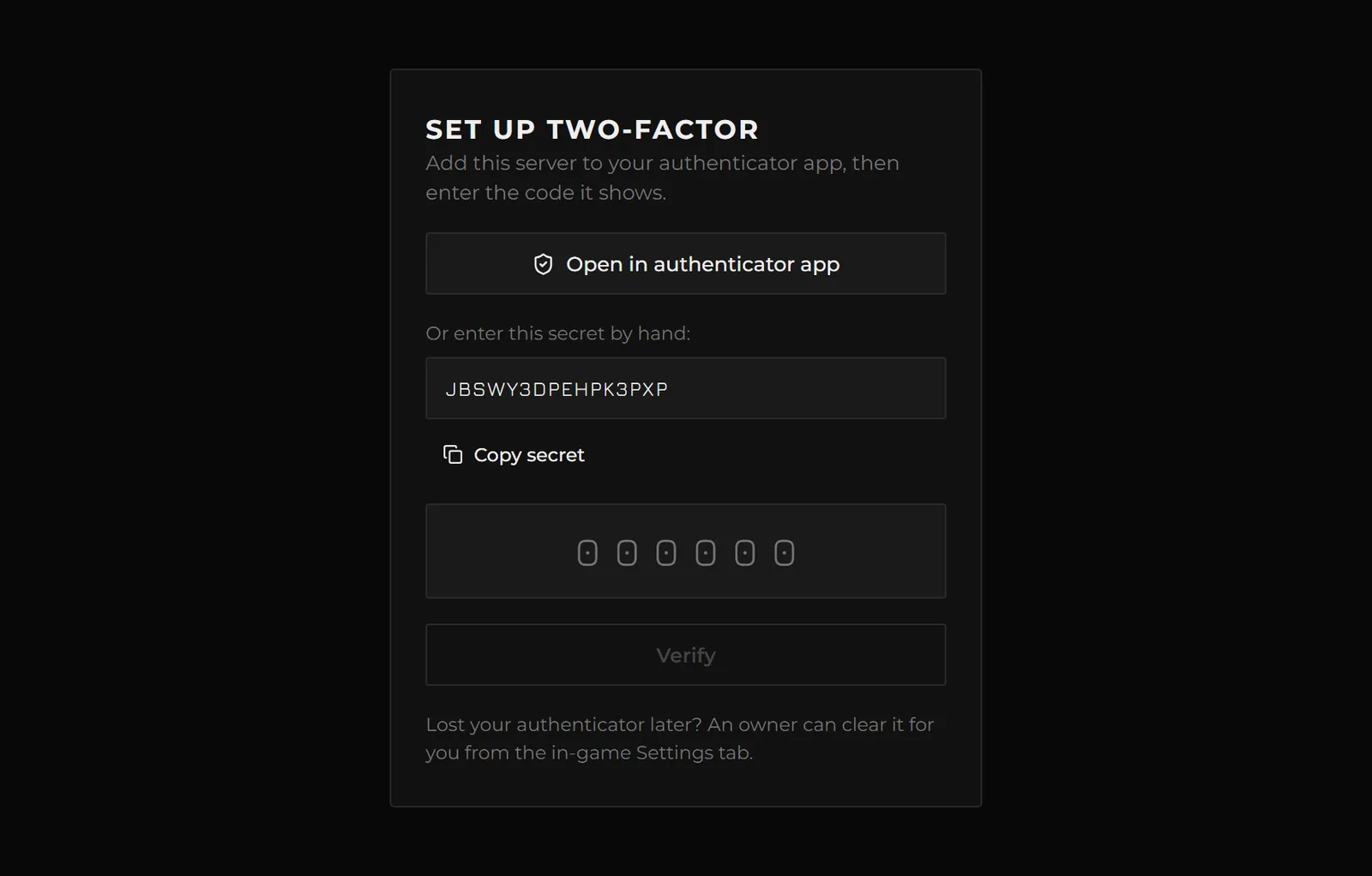
There is deliberately no QR code. The common case for this panel is a phone, where the authenticator is on the same device and a QR cannot be scanned off the screen showing it - so enrolment is a link and a secret instead.
The setup secret is shown only until the first correct code - after that it is never displayed again, so nobody who completes a Discord login can re-read it.
Lost phone? In game: Settings tab → Web Portal → the 2FA button next to their name clears their enrolment and signs them out, so they re-enrol on the next login.
Configuration
Everything that is not a secret lives in configs/portal.lua.
-- Master switch. Nothing is reachable while this is false.
enabled = true,

-- Discord role ids a member must have before they can even try to log in.
-- Empty means any guild member may try (they still need an admin rank to get in).
requiredGuildRoles = {},

session = {
    idleMinutes   = 60,    -- minutes of inactivity before a session ends. Any request resets it
    absoluteHours = 12,    -- hours a session can live in total, however active
    bindUserAgent = true,  -- tie a session to the browser it was created in
},

totp = {
    required = true,       -- ask for an authenticator code at login. Leave this on
    issuer   = 'xT Admin', -- the name shown in the authenticator app
    window   = 1,          -- 30-second steps of clock drift to accept. 1 for phones, 2 max
},

-- Watch a player's screen from the browser. OFF by default and a separate
-- decision from `enabled`. Staff also need the `portalViewScreen` permission
-- in xt-admin. Frames are never saved anywhere.
screens = false,

-- Requests allowed per minute, per IP address.
rateLimit = {
    apiPerMinute    = 120,   -- normal portal traffic
    authPerMinute   = 10,    -- login and code entry. Kept low so a 6-digit code cannot be guessed
    tilePerMinute   = 600,   -- map tiles. One pan loads many at once, and the browser caches them
    screenPerMinute = 240,   -- screen-view polling. Ignored while `screens` is false
},

-- Behind Cloudflare Tunnel or a reverse proxy, use CF-Connecting-IP /
-- X-Forwarded-For as the visitor's address for rate limiting.
trustProxyHeader = true,

-- Largest request body accepted, in kilobytes. Saving the economy map has its
-- own, larger allowance and ignores this.
maxBodyKb = 64,
absoluteHours is also how long a rank granted only by a Discord role survives losing that
role - roles are read at sign-in. To end a session right away, revoke it from the in-game
Settings tab.
Day-to-day usage
Kill switch. Admin menu → Settings → Web Portal → Revoke all. Every session dies immediately, including any live screen view.
Demoting someone. Change their rank in game and it takes effect on their next click. You do not need to revoke their session - though revoking is instant and costs nothing.
Reading the logs. Portal actions are marked via = portal in the same audit trail as the
in-game ones. Nothing is filed in a separate place.
Testing without a domain
For trying the panel out on your own machine. Not a deployment. If you do this on a box
whose game port is forwarded, the handler is still reachable out there - what stops a stranger
is that every URL the portal builds points at localhost, so the Discord round-trip lands on
their machine and no session is ever issued. That is a side effect of the loopback host, not
a security boundary: keep it to a dev box, and put totp.required back before the host convar
becomes a real hostname.
You still need Steps 1 and 2: a Discord application and your guild id. There is no way around those, and no bot is involved.
Point the host convar at your own server, with the port
set xt_admin_portal_host    "localhost:30120"
set xt_admin_portal_base    "/xt-adminportal"
set xt_admin_discord_id     "<application id>"
set xt_admin_discord_secret "<client secret>"
set xt_admin_discord_guild  "<guild id>"

ensure xt-admin
ensure xt-adminportal
Include the port. localhost on its own means port 80, which is not where FXServer
listens - the portal warns about that at start-up rather than quietly building broken URLs.
localhost, 127.0.0.1 and ::1 are the only hosts served over plain http. Every other
hostname is https no matter how it is written, so a local setup cannot become a live one by
forgetting to change something back.
Turn it on
enabled = true in configs/portal.lua.
While you are iterating, totp.required = false skips the authenticator step - put it back
before anyone else can reach the URL.
Paste the redirect URI
Restart and read the console:
Web portal ready at http://localhost:30120/xt-adminportal/
Web portal: set the Discord redirect URI to http://localhost:30120/xt-adminportal/auth/callback
That second URL goes into your Discord application → OAuth2 → Redirects. Discord
accepts http:// here because localhost is exempt from its https-only rule.
Give yourself a rank
ACE will not work - see Step 6. The quickest for a local test is by Discord role, in
xt-admin's configs/permissions.lua, which needs no license at all:
permissionsByDiscordRole = {
    [123456789012345678] = 'dev',   -- right-click your role in Discord → Copy Role ID
},
Then open http://localhost:30120/xt-adminportal/.